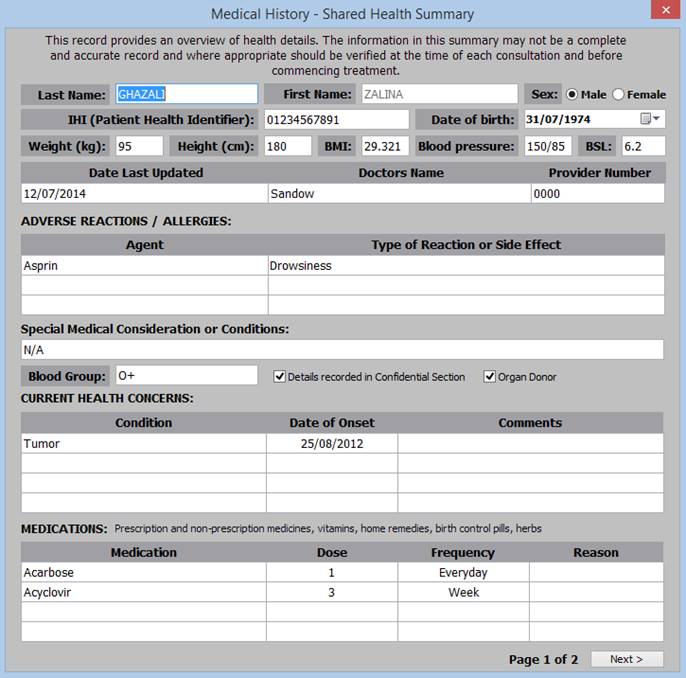

View DICOM Imaging Studies on RadCard™
(All RadCard users may view imaging studies.)
• Click the “View” button under “Imaging”.
• iQLite will launch. Select the required studies.

• Click “View” 
• Roll mouse over bottom and left edges to open menu buttons (blue)
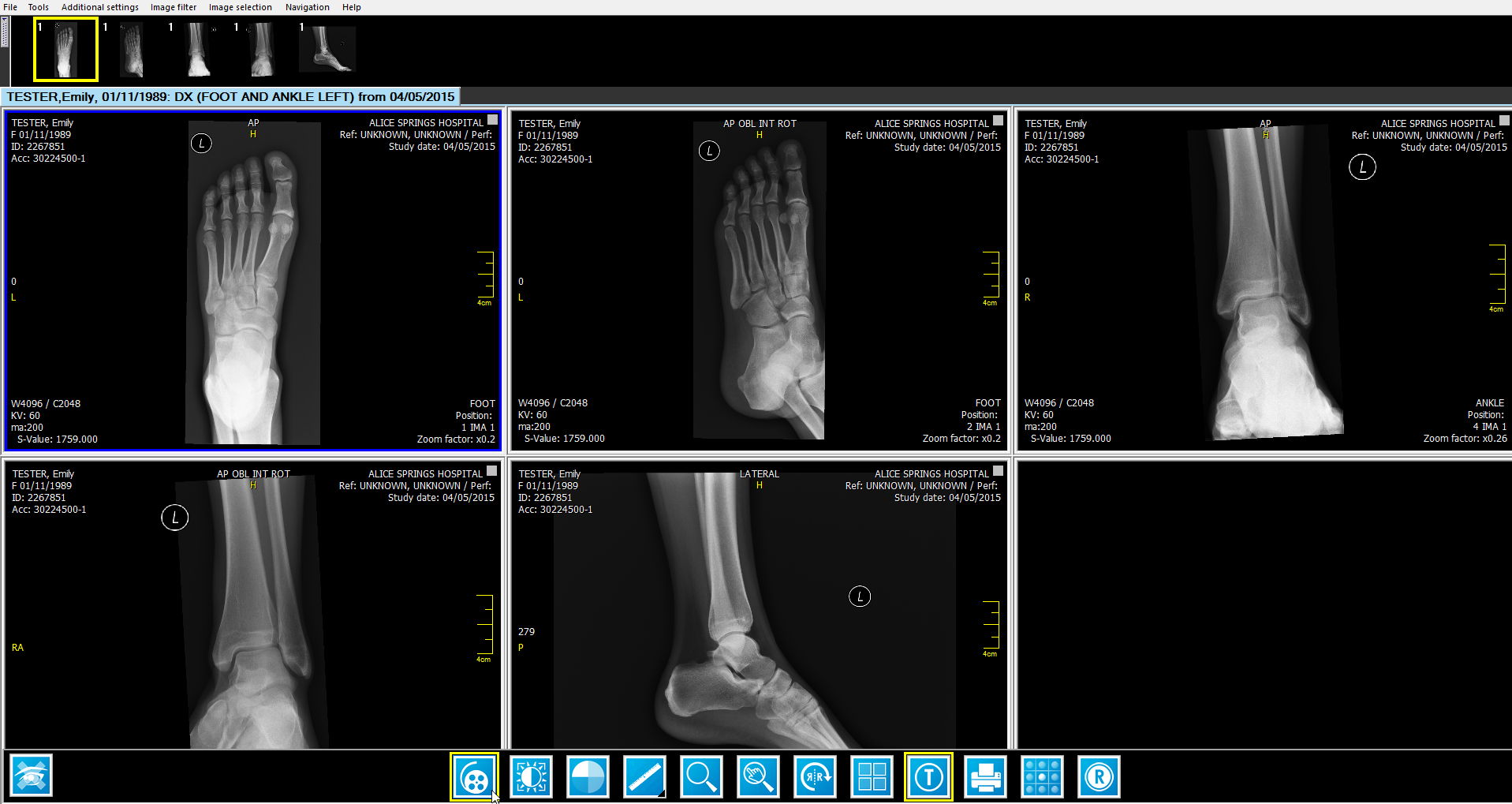
 Move through Slices – hold left button and move mouse Adjust Contrast – hold left
 Measurement – click two points
 Adjust Contrast – hold left button and move mouse
 Colour Scheme – click to change
 Magnify – Hold left button
 Image Filter – click to change
• Select Summary/Reports/Confidential.
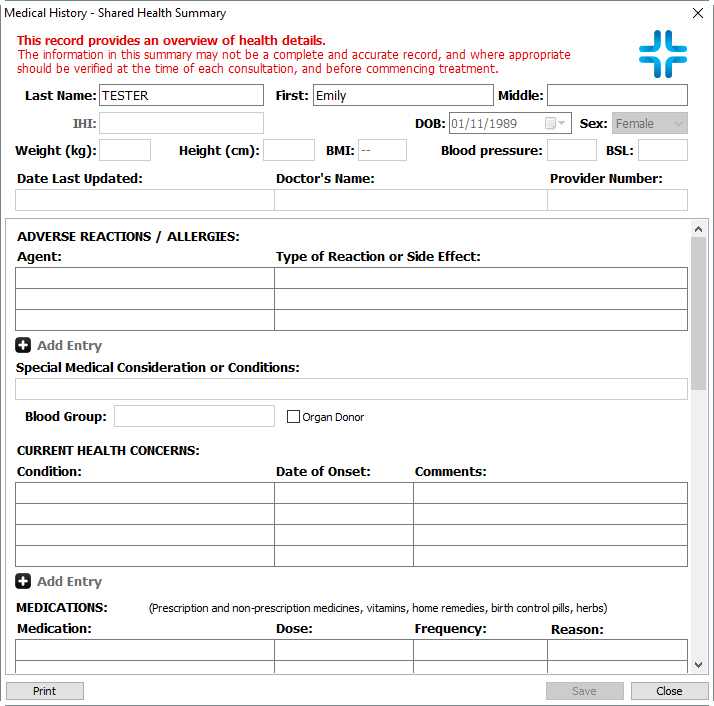
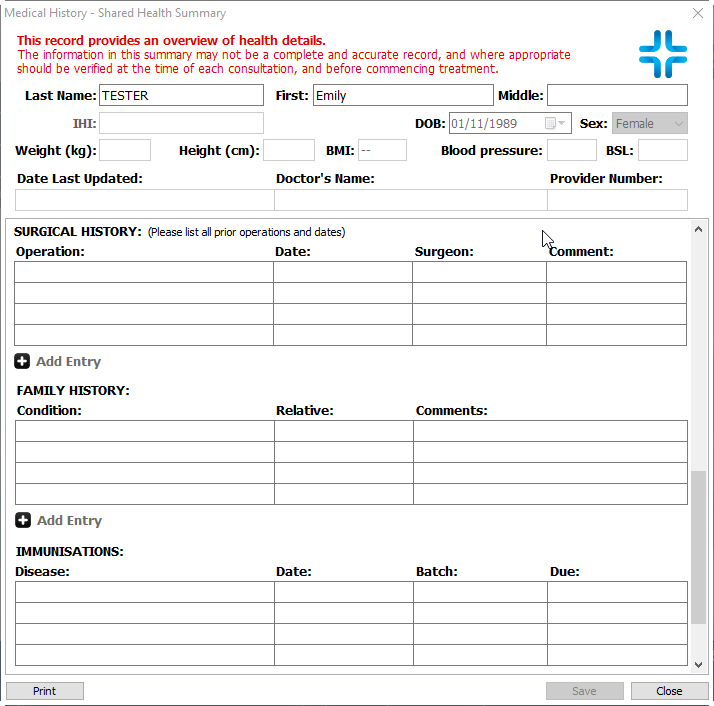
• Patient PIN is required to access or save Confidential Medical Summary.
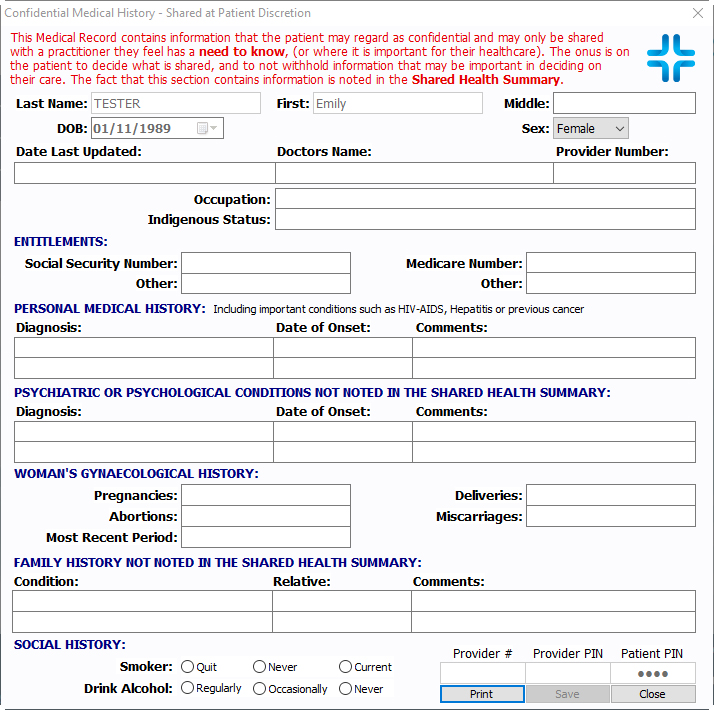
• Select “View” or “Add” buttons; or “Edit” button to edit summary.
• Select “Save” when finished.
• Any changes you make are saved, and your provider details are recorded as the updater.